
Lucoles LTDA

Full Stack Developer, Acquia Certified Drupal 10 and Drupal 7, ITIL, PSM

a guide on moving or duplicating drupal YAML config items using drush

Image
a 3D blue guy with round glasses and a lab coat is sitting at a computer, manipulating a blue hologram with lines of code in front of a greenish screen. more screens can be seen in the background.

ahhh, Drupal modules. where would we be without them? every developer has a trusty list of favorites, and I'm no exception… except that not all of them are of the "plug and play" variety, and sometimes need some setup.

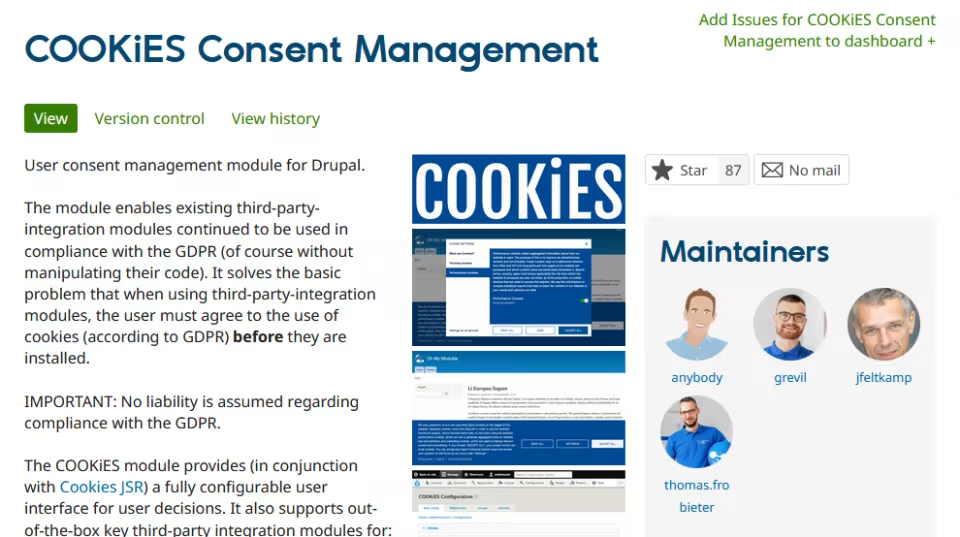
an interesting example is the Cookies Consent Management module, which is not only handy, but in many cases required (by law). however, this module has a few configs for it to function properly given each website's use case.
Image
a page whose title reads "COOKiES Consent Management". below this title, the tabs "View", "Version control", and "View history" can be seen. to the left, there is some text explaining the module; at the center, the word "COOKiES" in white against a blue background, below which two screenshots are stacked, showing a config screen and a cookies consent notice respectively. to the right, under "Maintainers", four avatars with their corresponding usernames under each, one being called "anybody".
Caption
thanks, Anybody! and everybody else too!

if you're working on a multi-site setup (especially under a single company) you'll need that config to remain consistent, with as little change as possible. this is yet another case where Drush comes to the rescue!
Image
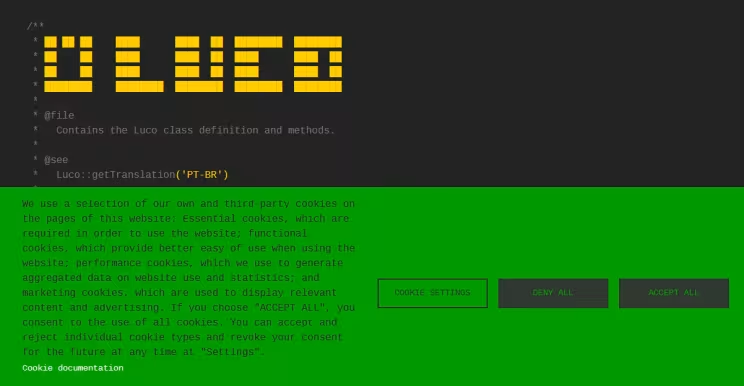
the homepage for luco.ws, with a symbol and the word "LUCO" in yellow ASCII art against a dark gray background, along with some text in gray. at the bottom half there is a cookie consent notice with text in dark gray against a green background to the left. to the right, a button labeled "cookie settings" with dark gray text and border, and the buttons "deny all" and "accept all" in green text with dark gray background.
Caption
take a cookie, Neo.

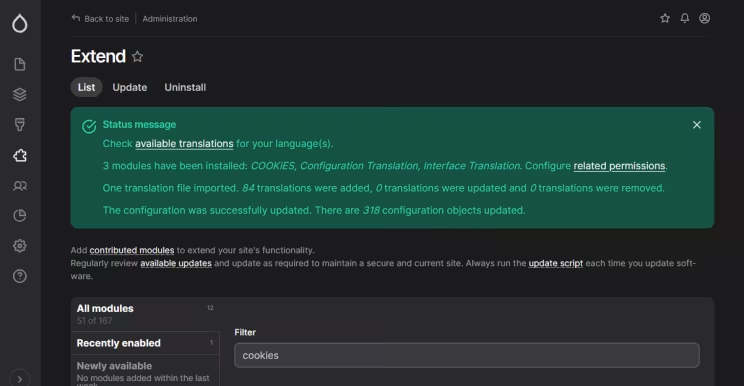
the first thing you'll want to do is enable the module on the website where you'll paste the configs. never mind the settings at this point; you just need Drupal to register your module so its settings can be updated later on.
Image
screenshot of the modules page on a Drupal-powered website, with the title "Extend" under which a status message advises the user to check for available translations; confirms that the modules "COOKiES", "Configuration Translation", and "Interface Translation" were installed; informs that translations were imported and that the configuration was successfully updated.
Caption
don't forget the required modules!

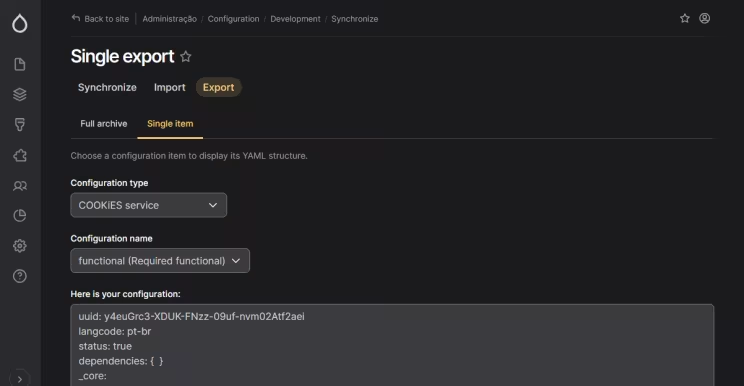
next, you'll need to export the module configs. for simpler modules, that means going to /admin/config/development/configuration/single/export, but let's face it: if you're reading this guide, that means you're not working on a simple module.
Image
screenshot of a page titled "Single export", with a set of buttons wherein "Export" is highlighted in yellow against an ochre background. below it, a set of tabs with "Single item" highlighted in yellow with an yellow line underneath. finally there are two dropdowns showing that the configuration for the COOKiES module is selected, along with the functional config name, and a textarea with YAML data.
Caption
if only it were that simple.

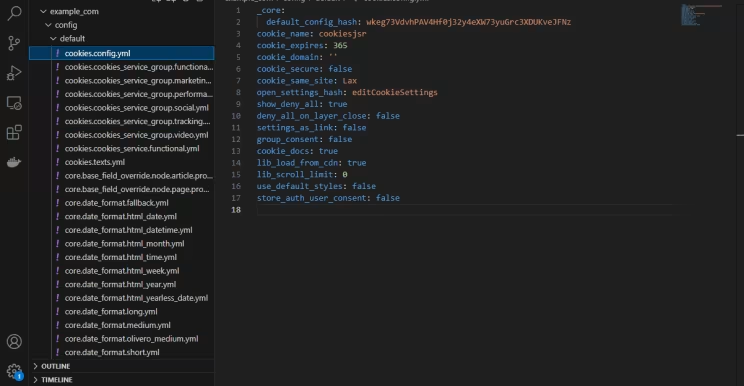
each module may have a set of configuration items, so it's safer to do it via Drush. on the site that's already configured, run:

ddev drush cex

this will export all config items to the dir of your choice, typically sites/default/files/config_HASH, with HASH being a unique identifier as per the official docs.
Image
screenshot of VSCode with a list of YAML config files to the left, one of which is selected, its corresponding data being shown to the right.

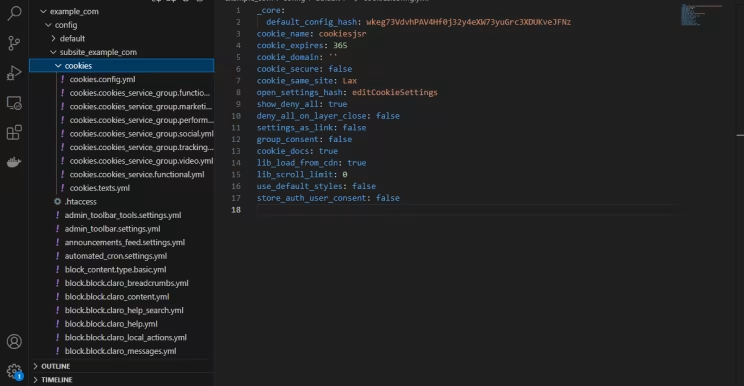
next, save the config files, unaltered, in a subdir called cookies for the destination site.
Image
screenshot of VSCode with a list of YAML config files to the left, one of which is selected, its corresponding data being shown to the right.

and run:

drush config:import --partial --source=path/to/your/config/cookies

and voilà. but please note that some extra steps related to appearance and block placement will have to be done manually. as usual, if you came across any difficulties, don't hesitate to reach out!

I hope you enjoyed this guide. see you next time, and happy coding! o/


Originally published at https://linkedin.com on May 16, 2025.